

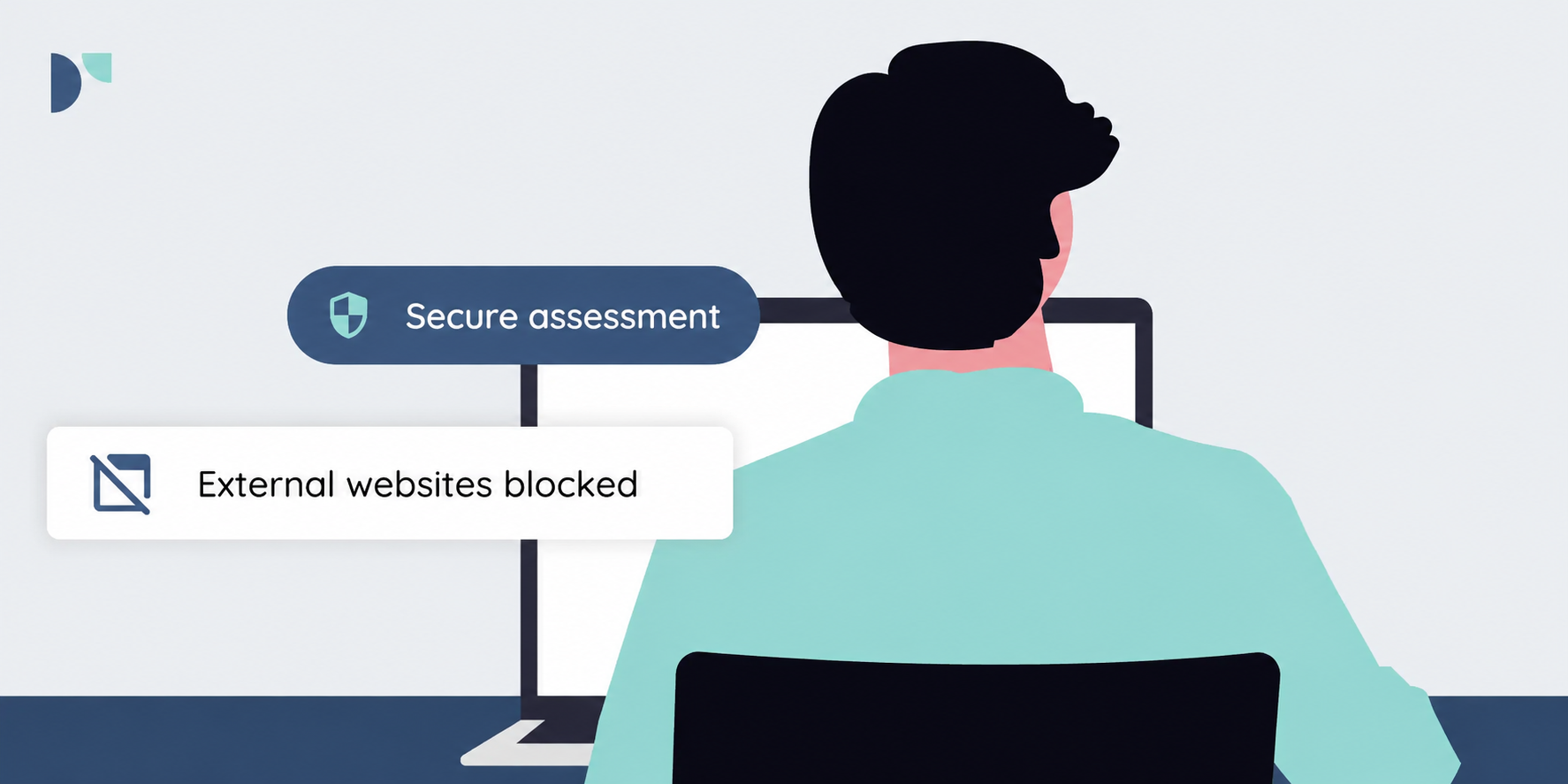
When delivering digital assessments, you usually want to prevent candidates from accessing other websites, applications, or resources during the exam. Digital assessment platforms offer several ways to secure a computer during an assessment. The best option depends on your situation: are you using managed devices, candidates' own laptops (BYOD), in-person invigilation, or fully remote assessment?
Below are four approaches to creating a secure digital assessment environment.
1. Full-Screen Protection: simple and no additional software required
The easiest option is full-screen protection. The assessment is launched in full-screen mode, similar to how a video can be viewed full screen. If a candidate exits full-screen mode, the assessment can automatically be paused. The candidate must then re-enter full-screen mode and, if configured, request permission before continuing.
Invigilators can see when a candidate leaves full-screen mode in the activity overview. The status "Not in Full Screen" is displayed, providing immediate visibility. When combined with the setting that requires candidates to receive permission before starting or resuming an assessment, this gives invigilators additional control during the exam.
This option is particularly suitable for reducing distractions or as an additional layer of control alongside other measures, such as in-person invigilation, managed devices, or IP restrictions. However, it is important to understand that this does not fully secure the computer. While browser functionality is restricted, it cannot prevent everything, such as the use of additional monitors or certain system pop-ups.
Keep in mind that tablets and smartphones do not support full-screen protection. If assessments must be accessible on these devices, this option should be disabled. When using Safe Exam Browser (SEB) or Schoolyear, the full-screen setting is not used, as these solutions already provide their own secure assessment environment.
2. Safe exam browser: stronger security with more preparation
Safe Exam Browser (SEB) is a dedicated secure browser that locks down the computer during an assessment. It restricts access to the operating system, applications, and websites, preventing candidates from opening or using unauthorized resources during the exam.
The trade-off is that SEB must be installed and configured in advance. Installation includes both the browser itself and the SEB Configuration Tool. Within Remindo, you can download a sample configuration file, which can then be customized using the Configuration Tool. Among other settings, the correct Remindo environment must be specified as the start URL.
The connection between Remindo and SEB is secured using a Browser Exam Key. This allows Remindo to verify that the candidate is using SEB with a valid configuration file. If multiple SEB versions are supported, a separate Browser Exam Key must be configured for each version.
SEB is particularly well suited for managed devices or environments where the organization has sufficient control over the computers being used. For Bring Your Own Device (BYOD) scenarios, it is often less practical.
3. Schoolyear: strong security with greater ease of use
Schoolyear provides a secure assessment environment by automatically closing other applications and launching a dedicated exam session. It can be made mandatory when scheduling an assessment, ensuring that candidates can only start the assessment through Schoolyear.
Candidates simply launch Schoolyear. If the application is not yet installed, they are guided through the installation process first. After installation, they are taken directly to the correct assessment without needing to log in again. Assessments also do not need to be scheduled separately in Schoolyear; scheduling within your assessment platform is sufficient.
Although Schoolyear requires a paid license, it is often easier to use than SEB. It also offers greater flexibility for scenarios involving Chromebooks, application-based assessments via Azure Virtual Desktop (AVD), or situations where certain applications must remain available during the assessment.
4. Remote proctoring: Secure exam mode with online ionvigilation
With remote proctoring, such as Proctorio, secure exam mode is combined with online invigilation. Proctorio is a browser extension that enables invigilators to monitor candidates throughout the assessment.
Before the assessment begins, various checks can be performed, including webcam, microphone, and screen recording, screenshots, URL monitoring, room scans, and identity verification.
During the assessment, Proctorio can also enforce a range of security restrictions. These include requiring full-screen mode, blocking copy-and-paste, Print Screen, and context menus, preventing new tabs or browser windows, blocking multiple monitors, and disabling printing or downloading.
This approach is particularly suitable for remote assessments where no physical invigilator is present. Because remote proctoring involves the processing of personal data and recordings, organizations should carefully consider their procedures, candidate communication, and privacy policies before implementation.
There is no one-size-fits-all solution
There is no universal best choice for every assessment. Full-screen protection is quick to deploy and easy to use but is best suited as a lightweight security measure or additional control layer. Safe Exam Browser offers stronger protection but requires installation and ongoing management. Schoolyear combines robust security with ease of use and greater flexibility. Remote proctoring adds online invigilation for fully remote assessment scenarios.
Finally, remember that secure assessment involves much more than simply locking down a computer. Measures such as IP restrictions, approval workflows for starting or resuming assessments, in-person invigilation, managed testing locations, well-defined procedures, and clear communication with candidates all contribute to a secure, reliable, and trustworthy assessment process.

.webp)
